Run your genealogy
Whoever makes a genealogy is its administrator, and can ask other relatives to help run it. Everything here starts from Genealogy admin on the genealogy's front page.
1Genealogy settings
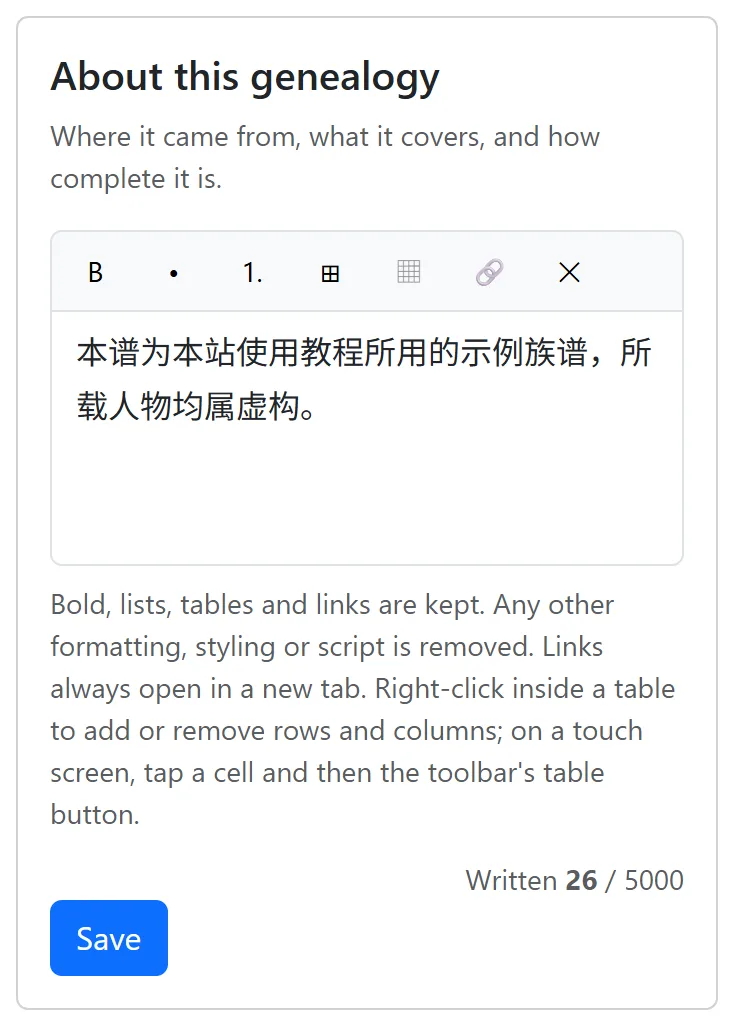
On Genealogy admin, press Genealogy settings to change the name and the ancestral place, write About this genealogy (where it comes from, what it covers, how complete it is - with bold, lists, links and tables), and, under Generation characters, press Edit generation characters to set the generation poem and the generations it cannot work out - a skipped character, a generation that used none; the rest are counted on through the poem, and shown on the front page, on people's pages and in the statistics. Each part is saved on its own.
2Who can see it
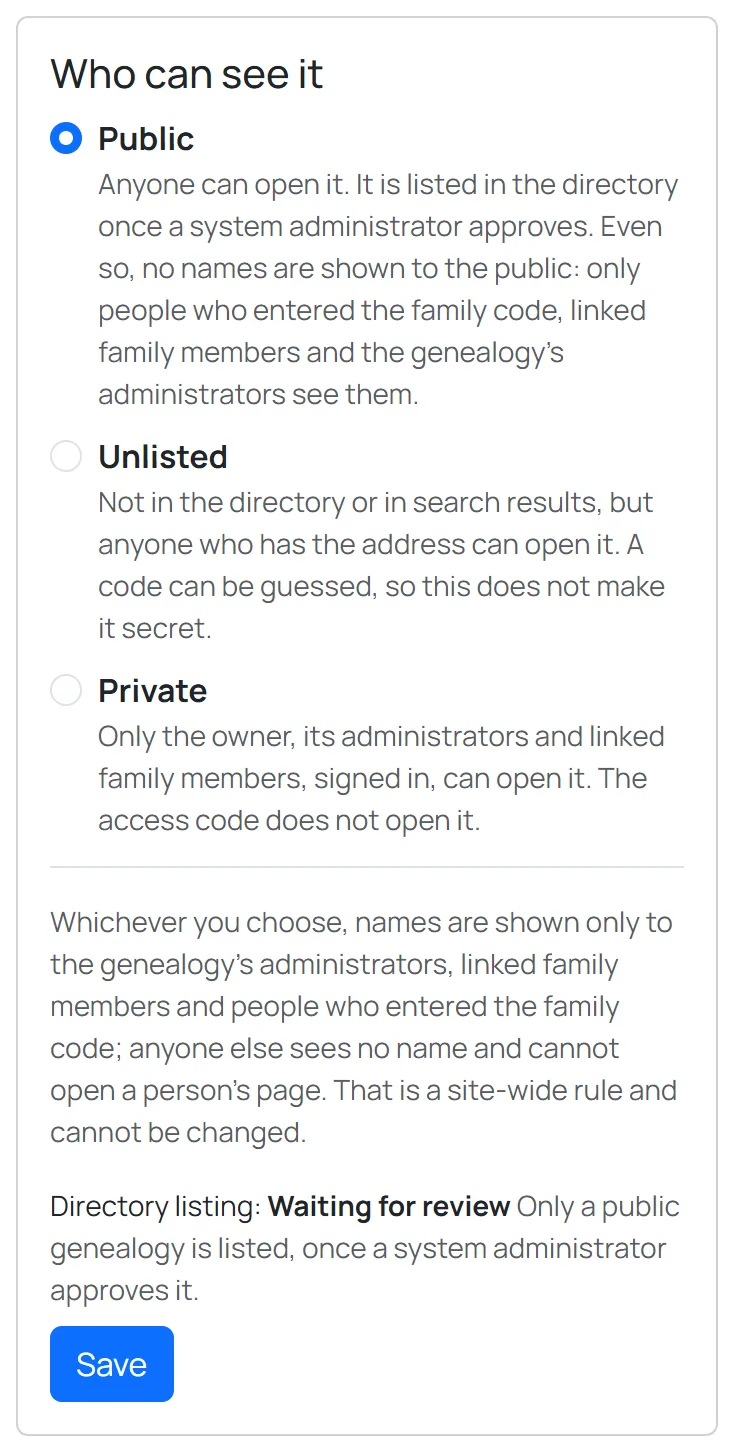
Under Who can see it in Genealogy settings, choose one:
- Public: anyone can open it, and once this site approves it, it is listed in the directory. Even so, names are not shown to the public by default (see below).
- Unlisted: not in the directory or in search results, but anyone with its address can still open it.
- Private: only its maker, its administrators and approved family members, logged in, can open it; the family code does not open it.
Whichever you choose, by default no names are shown to the public: every name on the chart shows as ***, and people's pages do not open. Only people who entered the family code, linked family members and the genealogy's administrators see them. To let the public read the names of your forebears, tick Show names to the public below and save: the earlier generations' names and pages open to everyone. The recent generations (people with fewer than four generations recorded below them) are never shown to the public; that is a site-wide rule to protect privacy, which a genealogy's administrators cannot change.
3Edit policy
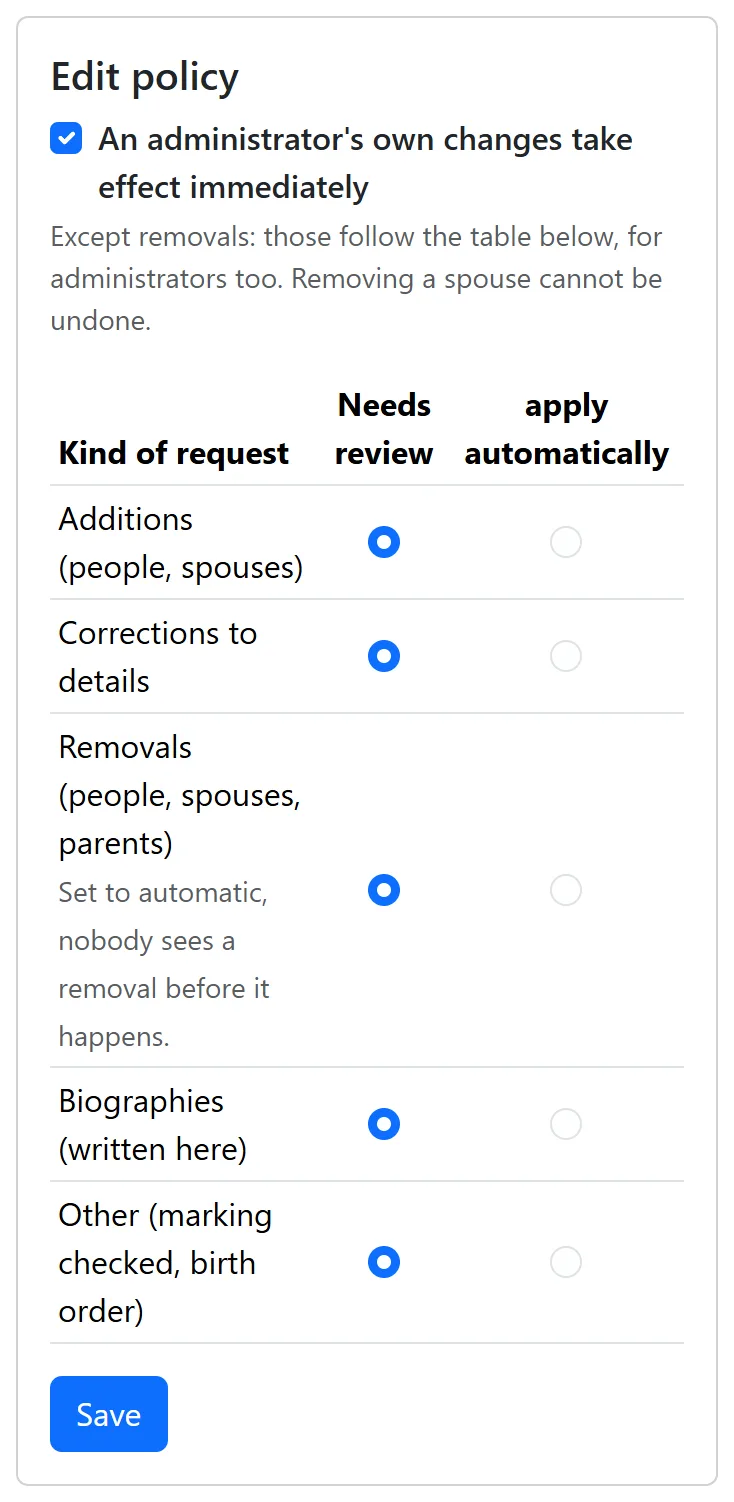
Edit policy on Genealogy admin sorts other people's changes into five kinds: additions, corrections, removals, biographies and other. Each can need review or apply automatically; by default all need review. Tick An administrator's own changes take effect immediately and your own additions and corrections need no review; removals still follow the removals row.
4Administrators and family members
A relative presses Apply to join this genealogy on its front page, signs up or signs in, and says why they belong; the application appears on Genealogy admin under Applications to join. You may approve it, choosing View only or Edit; Ask for more, which they are emailed and answer on the site; or Ignore it. Approved, they are an approved family member: logged in, they see the names and details, and with edit access can send changes and download the PDF and the lineage image.
Press Accounts on Genealogy admin to change an approved family member's access (view only or edit), to make them an administrator so that they can review too - or to return them to member, or remove them from the genealogy.
5Where the line comes from, and the history
The line above the founder can be entered row by row under Where this line comes from on Genealogy admin, from other genealogies or local histories, with a source for each row.
The Change history lists every change that took effect, and each can be undone; Roll back to a moment puts the whole genealogy back as it was at a given time.