Build it together as a family
A genealogy belongs to a whole family, and nobody finishes one alone. The simplest way to share the work: set a family code, post it in your family's group chat, and relatives who open the link and enter the code can add descendants and correct mistakes. They need no account, and every change waits for your approval.
1Set the family code
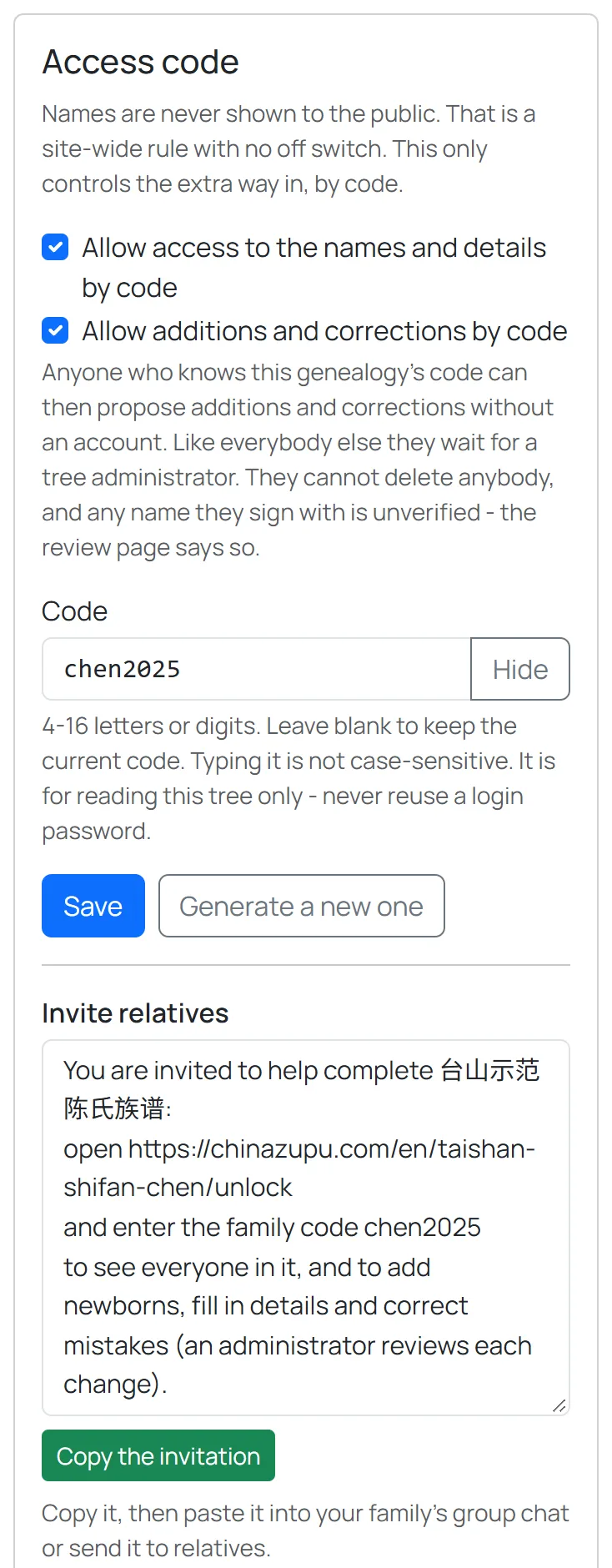
Open the genealogy, press Genealogy admin and find Access code. A new genealogy already has a code, and both boxes are ticked:
- Allow access to the names and details by code: whoever enters the code sees the names and people's pages hidden from the public.
- Allow additions and corrections by code: whoever enters the code can send additions and corrections, which take effect once you approve them.
The code is hidden until you press Show; then you can change it and press Save.
2Copy the invitation into the family chat
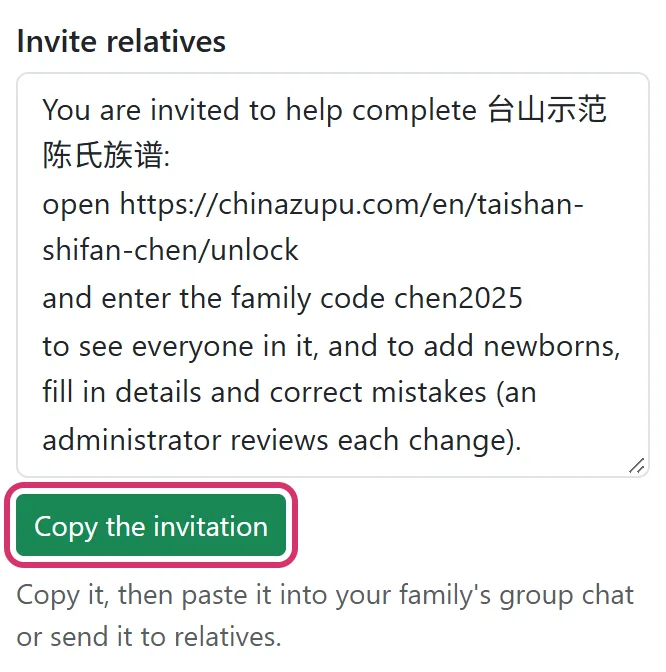
Under the code, Invite relatives holds a ready-made message with the genealogy's name, its link and the code. Press Copy the invitation and paste it into your family's group chat. The link opens straight onto the page for entering the code.
3Relatives enter the code
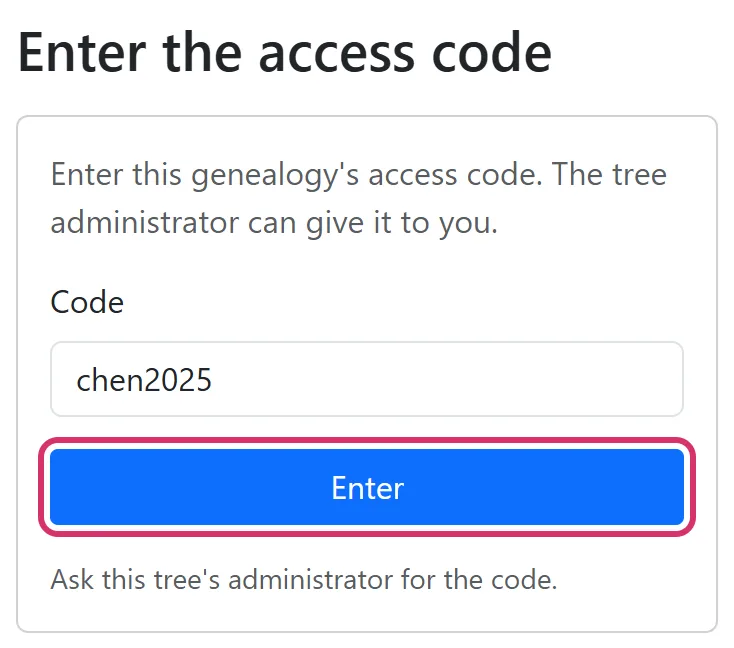
A relative opens the link, types the code and presses Enter. They can now see everyone's names and details. On the same phone or computer the code lasts 14 days; on a shared computer, press Code accepted and then End access when finished.
4Relatives fill it in
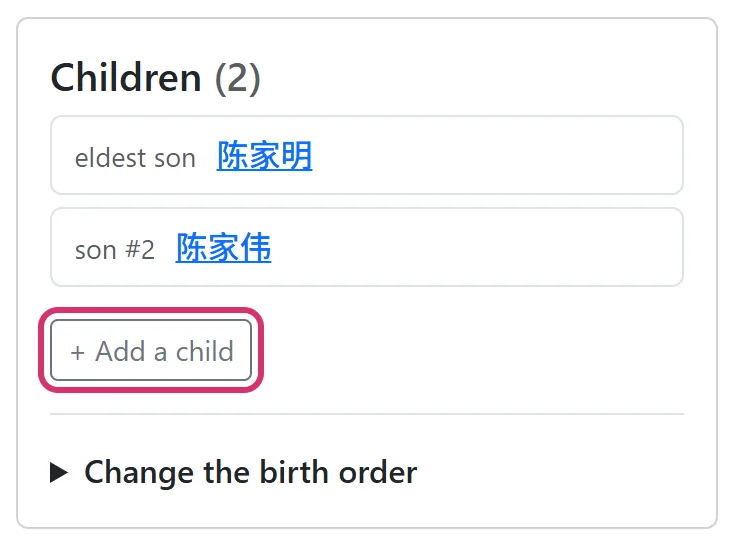
With the code entered, a person's page gains these buttons:
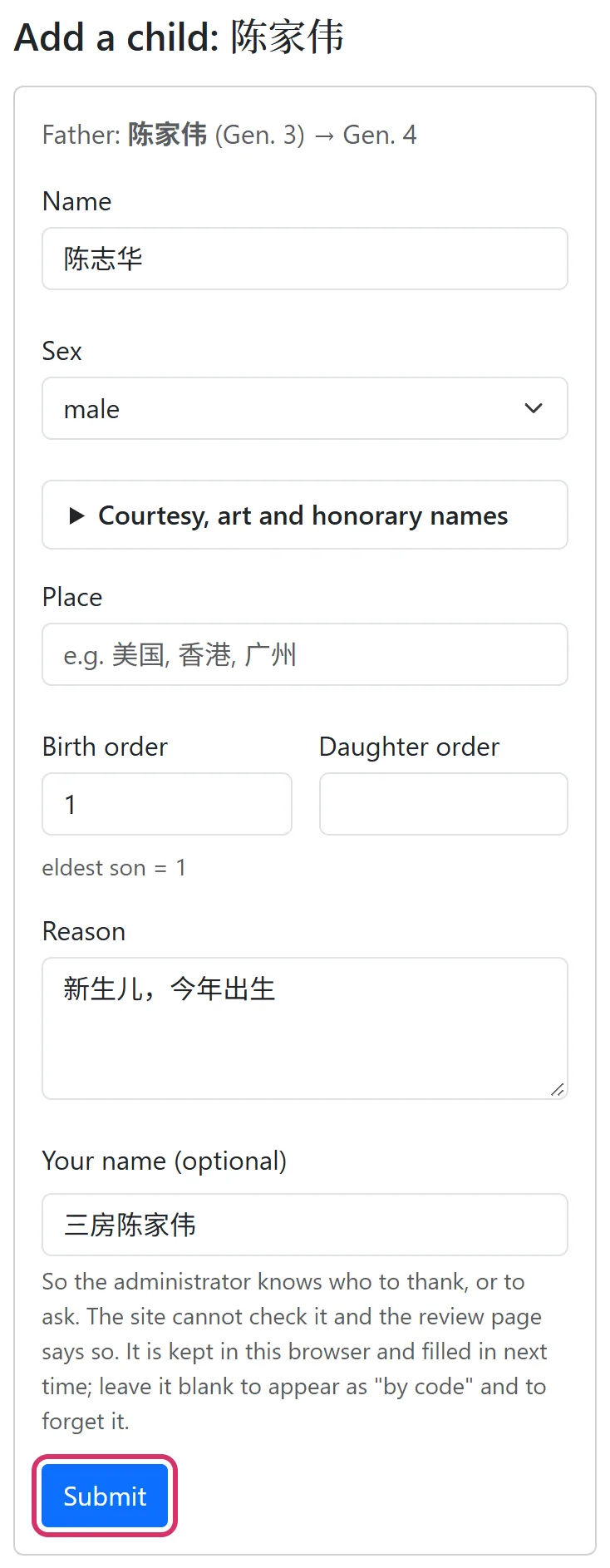
- + Add a child, under Children: a newborn, or a child the genealogy missed. The generation counts itself.
- Add spouse, Propose a correction and Write a biography: a spouse, a corrected name, courtesy name or birth order, a few lines about an ancestor.
Every form has Your name (optional). Ask relatives to say who they are (for example "Chen Jiawei, third branch") so that you know who sent what. The code can never delete anyone.
5You review
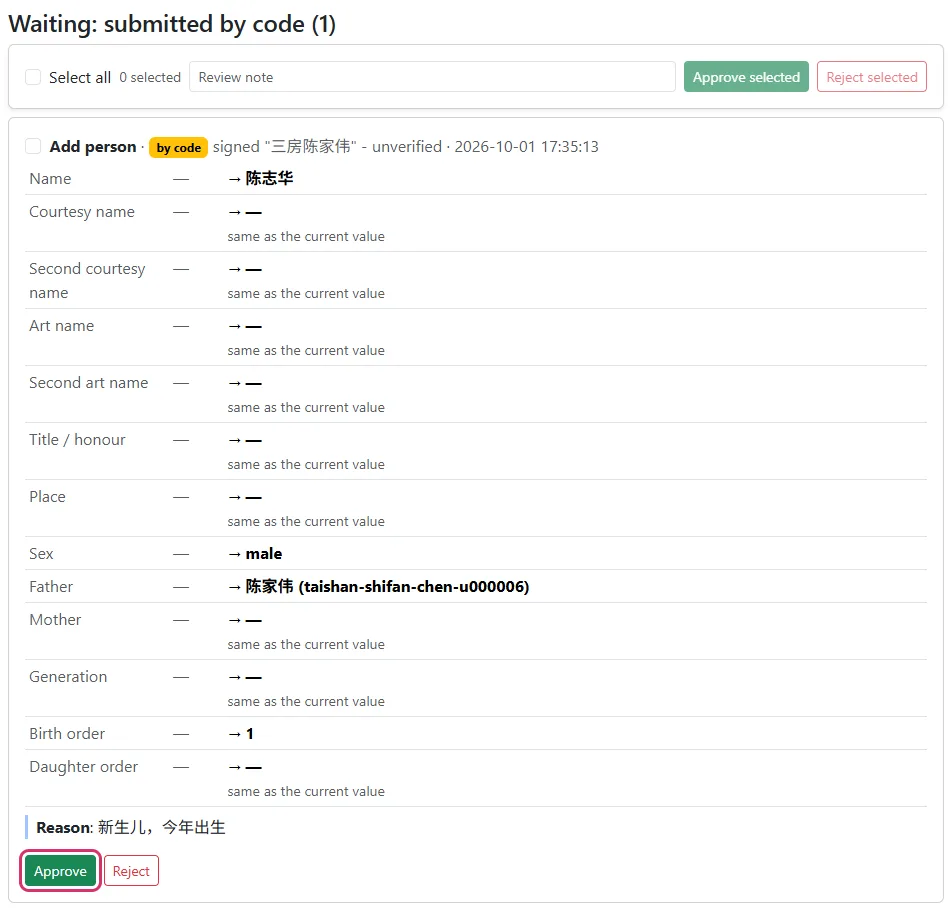
What relatives send appears on the Genealogy admin page under Waiting: submitted by code, saying what would change, who sent it (by code, and the name they gave) and why. If it is right, press Approve and it takes effect at once; if not, Reject. With many at once, tick several and press Approve selected.
6Approved by mistake? Undo it
Every change that took effect is in the Change history (the button near the bottom of the Genealogy admin page). Press Undo on one and it is put back as it was, with the undoing recorded too.

Good to know
- If the code has spread further than you meant: press Generate a new one under Access code and post the new invitation - from then on only the new code gets in, and people who entered the old one stop seeing the names at once. Untick Allow additions and corrections by code and save, and sending changes by code stops at once; untick Allow access to the names and details by code and save, and reading by code stops at once too.
- By default every change waits for you. To let one kind of change take effect without review, set it to apply automatically under Edit policy on the Genealogy admin page.
- Relatives can also press Apply to join this genealogy on its front page, make an account and say why they belong; once you approve it under Applications to join, choosing view only or edit, they are an approved family member.